
Notes that are files
Double-click the board to write. Markdown renders in place; ⌘B and ⌘I wrap bold and italic.
.txt.md
Cross-platform desktop and web application with responsive UI, where folders with files can serve as whiteboards or other types of views, and be stored locally or in the cloud for real-time collaboration and publishing
Seven views
Every folder remembers its own view. Switch whenever the work changes — the files stay put, only the way of looking moves. Two classic file-manager views, List and Grid; two spatial ones, Board and Canvas; and three based on sorting, Stack, Masonry and Slides.
Board — Place anything anywhere. Resize, leave space, snap to a grid if you like.
Files stay files
In the desktop app you open a real folder on your disk. There is no library to import into and no database to get locked into.
A note is a .txt or .md. A shape is an .svg. Any other app can still open them.
Position, size, view and background are kept in the files' extended attributes. Nothing to import or export.
Drawings and connectors sit in a small .pile folder next to your files.
Rename or add something in Finder or Explorer — it shows up on the board.
The same folder, side by side: a classic file manager on the left, Pile Commander on the right.
Opening folders from your disk needs the desktop app. In the browser you get a demo and browser desktops.
What lives on it
Drop things in and they show up as themselves, not as a row of filenames.
Double-click the board to write. Markdown renders in place; ⌘B and ⌘I wrap bold and italic.
.txt.md
Orbit around a model right on the board. The angle you leave it at is the angle it keeps.
.glb.gltf
The picture, not its filename.
.png.jpg.gif.webp.avif.bmp
Plays in place with the native player.
.mp4.webm.mov.mkv.ogv
Voice memos and tracks next to the notes about them.
.mp3.wav.ogg.flac.m4a.aac
Saved as real .svg files. Press L or A and drag to draw a line or arrow.
.svg
Turn on Preview and a sub-folder shows its contents, in its own view, right inside the parent.
Select a few things and Combine selected — they become one folder. Uncombine puts them back.
Any other file sits on the board as a tile and opens in its usual app.
Canvas
Switch any folder to Canvas and it becomes an infinite surface. Draw between things, connect them, and keep both hands on the keyboard.
Desks and windows
Experimental featureKeep several desktops side by side — on your disk in the desktop app, in the browser on the web, and in the cloud to follow you between devices. Each desktop is itself a board, with its own background and its own windows.
Start opens every workspace you have — Local, Cloud, Bookmarks, and Last opened — plus the ones shared with you and the ones you found on the Hub.
On a phone a workspace opens full screen and the folder tree slides in as a drawer.
⌘ on macOS. Alt for new window, sidebar and back elsewhere; Ctrl for copy, paste and duplicate.
Share and publish
A cloud workspace can be shared three ways, and you choose each one separately.
1 Share workspace
2 Publish
3 Found on the Hub
Editors and viewers you invite get every edit as it happens.
A public link shows the workspace as it is when someone opens it — not a copy you have to re-export.
A signed-in visitor can copy your workspace into their own account, or download it as a .pile.
Where it lives
Pick per desktop. You only need an account for the cloud.
Desktop app
Free, no account
Any browser
Free, no account
Desktop app or browser
Free plan: 100 MB
Files up to 25 MB, up to 3 workspaces on the Hub. See pricing
Uploaded files sit in a private bucket, encrypted at rest with AES-256. The app opens them through short-lived signed links, and anonymous visitors to a public workspace see thumbnails and poster frames rather than your originals. Files that stay on your computer never go there. How Backblaze encrypts files at rest
Any device
The same app on a desktop, a tablet and a phone. The interface reshapes itself for the screen — and for fingers instead of a mouse.
The sidebar folds away on a tablet; on a phone the board becomes one easy column.
Tap, drag and pinch to zoom work the way they do with a mouse and trackpad.
Add it to the home screen and it opens like an app — no store needed.
Cloud desktops follow you to every device; local and browser desktops stay on the one you use.
Everything on your computer is free and needs no account. The desktop app updates itself and opens .pile archives.
macOS
Apple silicon and Intel
Windows
Desktop app
Linux
Desktop app
Web
Any modern browser
Any folder in the desktop app, or the demo workspace in the browser.
Pick a view, drop things in, write where the idea belongs.
Sign in when you want people in it, or a link to it.
Try it
Download a demo as a .pile and open it in the desktop app, or look at the same workspace online.
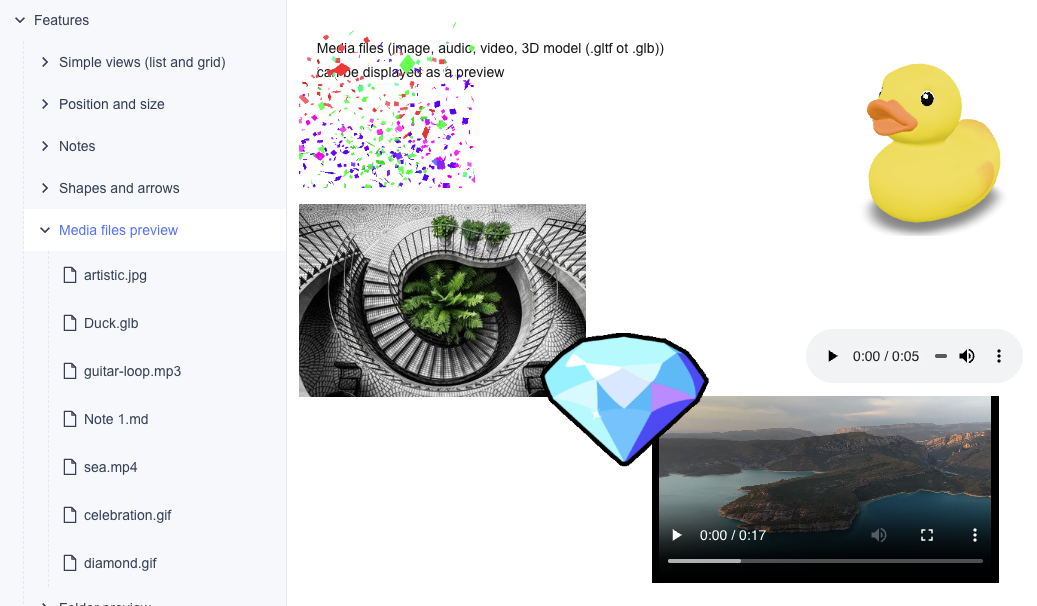
A tour of every view, file type and canvas tool, one folder each.
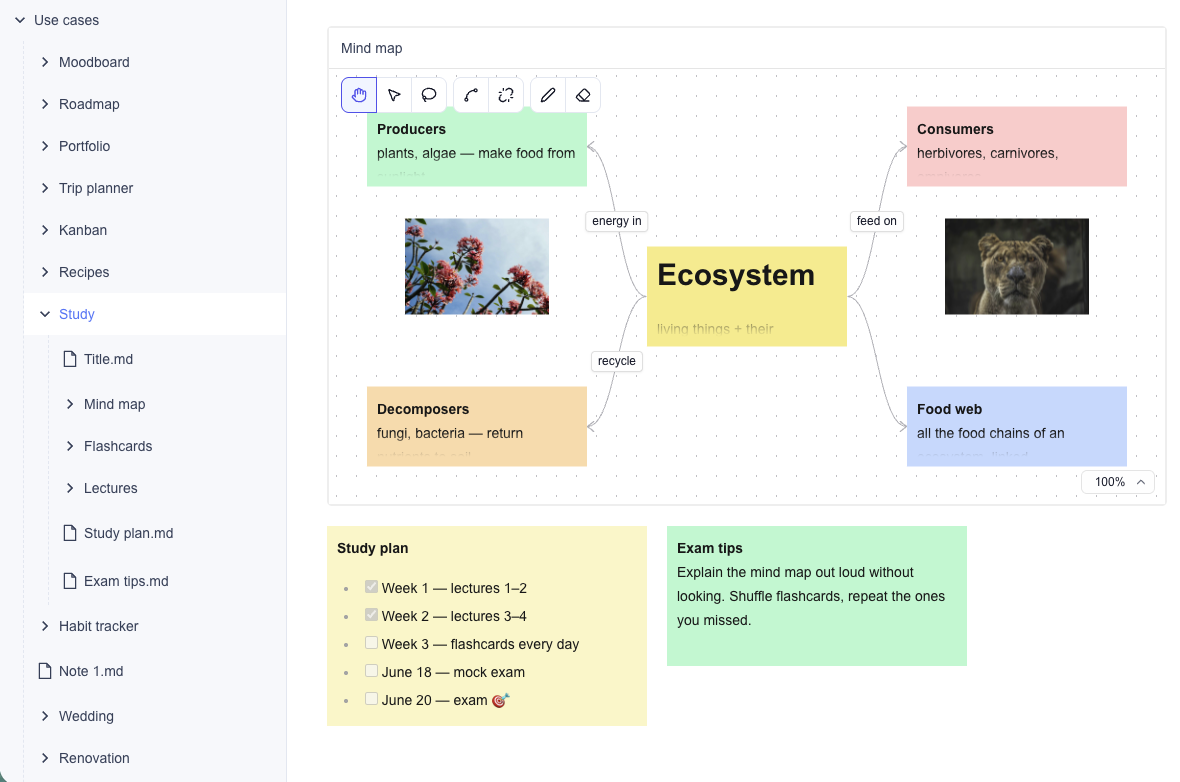
Moodboards, project boards and research piles, set up the way people actually use them.
Under the hood
A workspace is a folder on disk. The board is written into the files' extended attributes — there is no database to migrate and nothing to lock you in.
Research/workspace root
References/
harbor-01.jpg
Mood.md
.pile/strokes.json · connections.json
Position, size, view and background are stored on the files themselves: as xattrs on macOS and Linux, and as alternate data streams on Windows (NTFS only). In the browser and the cloud they travel as records next to each file.
The desktop app works right in your ordinary file system — the same folders you see in Finder or Explorer; Tauri only provides the bridge to them through its plugins. The browser version keeps its desktops in IndexedDB.
Supabase for accounts, data and live editing. Media files are stored in Backblaze B2.
Just a zip of the folder with its attributes, so the layout survives email, USB sticks and file systems that drop xattrs.